
What GoFullPage Screenshot does
Full Page Screenshot – Screen Capture
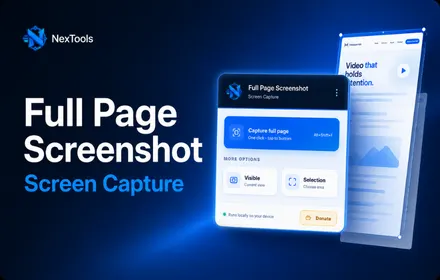
Full Page Screenshot makes it easy to capture an entire webpage from top to bottom directly from your browser.
Take a full page screenshot, capture the visible screen area, or select a specific region of a webpage. After capturing, use the built-in screenshot editor to annotate, crop, blur and customize your image before saving or sharing it.
Key Features
- Capture full page screenshots
- Capture entire webpages
- Capture visible screen area
- Capture selected regions
- Full webpage screen capture
- Automatic full-page scrolling capture
- Built-in screenshot editor
- Crop screenshots
- Blur sensitive areas
- Add text
- Add arrows
- Draw lines
- Draw rectangles
- Draw ellipses
- Marker and drawing tools
- Undo and redo editing
- Copy screenshots to clipboard
- Print screenshots
- Export as PNG
- Export as JPEG
- Export as PDF
- Simple and fast browser workflow
Capture a Full Page Screenshot
Take a screenshot of an entire webpage, including content below the visible browser area.
The extension automatically captures the full page so you do not need to manually take multiple screenshots and combine them together.
Use it for:
- Long webpages
- Articles
- Landing pages
- Website designs
- Reports
- Documentation
- Portfolio pages
- Development and QA
Capture the Entire Webpage
A normal screenshot usually captures only what is currently visible on your screen.
Full Page Screenshot lets you capture the complete web page from top to bottom in a single image.
This makes it useful when you need a full screenshot of a webpage for design references, documentation, feedback or website archiving.
Multiple Capture Modes
Choose the screenshot method that fits your task.
Full Page
Capture the complete webpage from top to bottom.
Visible Area
Capture only the part of the webpage currently visible in your browser.
Selected Region
Select a specific area and capture only the content you need.
Built-In Screenshot Editor
Edit your screenshot immediately after capturing it without opening another application.
Available editing tools include:
- Rectangle
- Ellipse
- Arrow
- Line
- Marker
- Text
- Crop
- Blur
- Undo
- Redo
Annotate Screenshots
Add arrows, shapes, text and markings to highlight important areas of a screenshot.
This is useful for:
- Website feedback
- Bug reporting
- Tutorials
- Instructions
- Design reviews
- Client communication
- Team collaboration
Blur Sensitive Information
Use the blur tool to hide information you do not want visible before exporting or sharing a screenshot.
Export Your Screenshot
After editing, save the screenshot in the format you need.
Supported export options include:
- PNG
- JPEG
You can also copy the screenshot to your clipboard or print it directly.
Full Page Screen Capture for Chrome & Edge
Whether you need a full page screenshot, full screenshot of a webpage, entire page screenshot, webpage screen capture or a browser extension for full page screenshots, this extension provides capture and editing tools in one convenient workflow.
Up and running in minutes.
Install
Add the extension to your browser in one click.
Pin it
Pin it to your toolbar for quick access.
Use it
Open the tool on any supported page and go.
Done
Get your results, export or save locally.
COMMUNITY REVIEWS
What users are saying.
0 published reviews
Be the first to review
Share how this extension helps your workflow.
LEAVE A REVIEW
Share your experience.
Sign in to your Nextools account to leave a review.
Sign in to reviewSimilar extensions
Chat Translator Unlimited
Remove the daily limit and translate unlimited chat messages on every site, in 1...
View details →
AD Block Master
Block intrusive ads, trackers, pop-ups and distractions with a fast, private, 10...
View details →
Allow Copy +
Restore text selection, copying and right-click on websites that block them — pr...
View details →
Tab Auto Refresh
Automatically refresh any tab on your schedule with quick presets, visual countd...
View details →